When setting up the connection on the Intra2net system, a file containing the private key for the Android client (with the extension
.p12) is created and exported.Now connect your Android device to your computer via USB. Many devices offer a choice of connection modes. Select a mode that allows you to transfer files between your PC and Android device, such as Media Device (PTP) or File Transfer. If you have any questions, refer to your Android device’s manual for information on transferring data between your PC and the device.
Now copy (for example, using Windows Explorer) the
.p12file you exported earlier to your Android device.Properly disconnect the connection between your PC and Android device using the “Disconnect” option in the Windows taskbar.
Alternatively, you can transfer the
.p12file to the Android device using another secure method, such as downloading it directly from the Intra2net system using your browser.On your Android device, open "", then go to the "" tab, and select "".
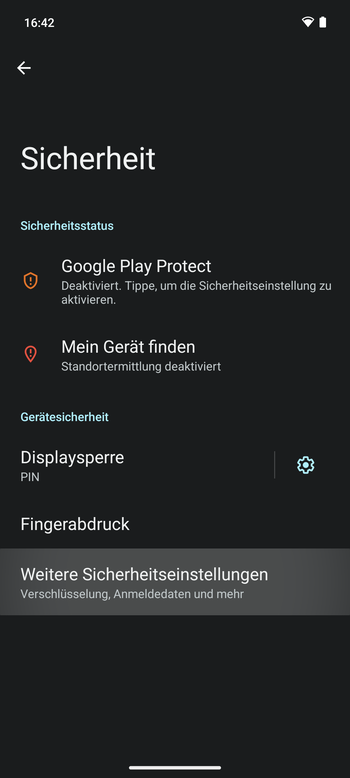
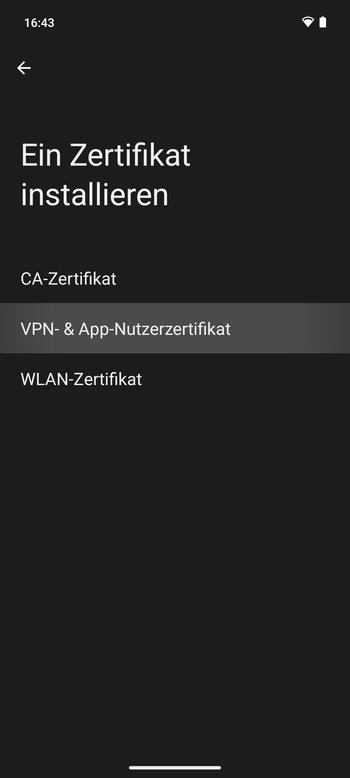
Open "", then "".
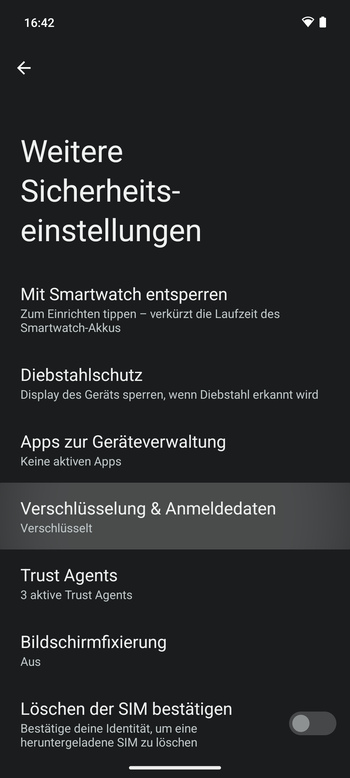
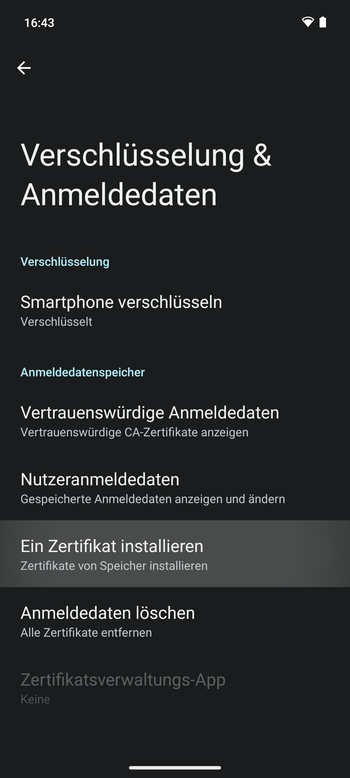
Select ""
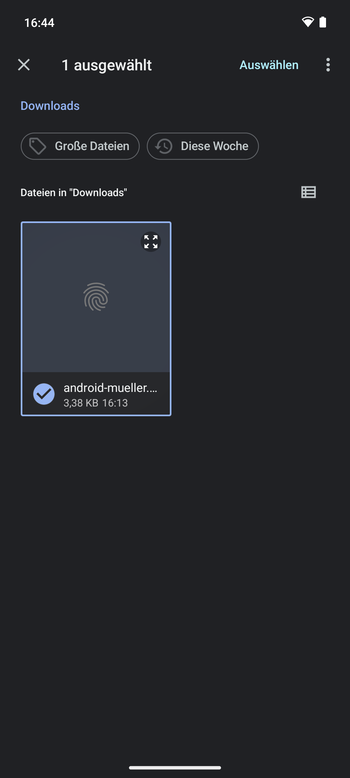
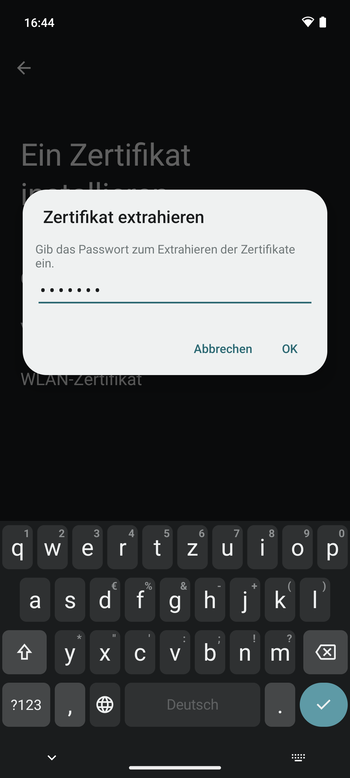
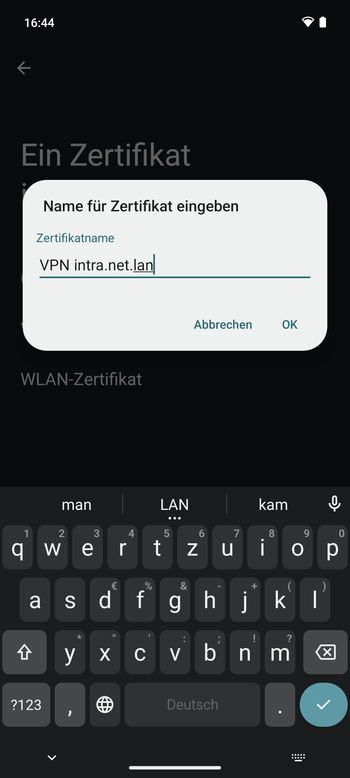
Enter the password you previously set on the Intra2net system. Then give the certificate a meaningful name. This is important so that you can later clearly associate the certificate with this VPN connection.